

To disable ‘Updates Available’ notification pop-ups on your Mac, you must stop your machine from downloading macOS updates in the background. You can do this by turning off an option in System Settings or running a command line in the Terminal. Both methods will prevent software updates from downloading automatically from Apple. Let’s take a closer look at these methods below.
How to Turn Off Auto macOS Updates in System Settings
Time needed: 2 minutes
The first and easiest way to prevent your Mac from downloading updates in the background is to disable automatic macOS updates in the System Settings. The process is simple and takes only a few clicks. Here’s what you need to do:
- Open System Settings on your Mac.
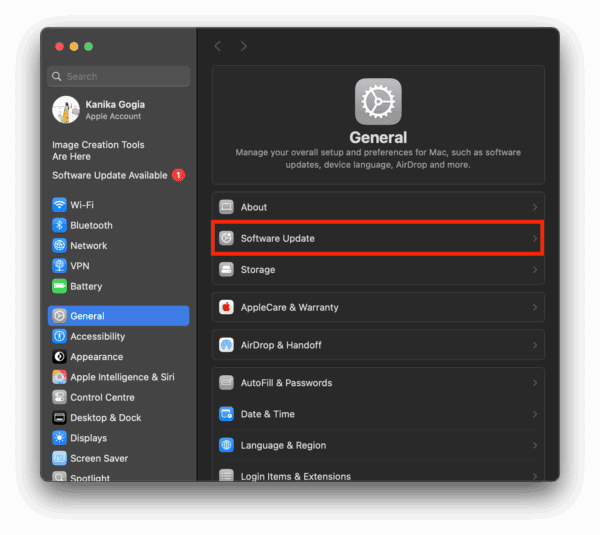
- From the left sidebar, click General.
- Choose Software Update.
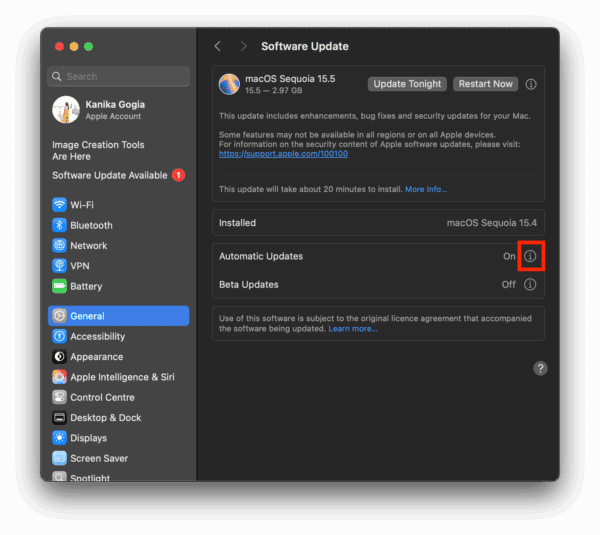
- Click the small i icon next to the Automatic Updates option.
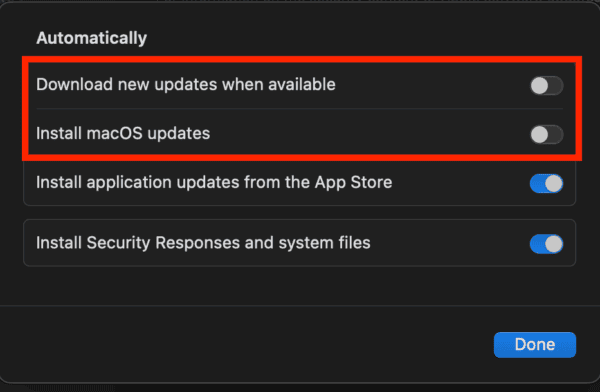
- Here, turn off the “Download new updates when available” option.
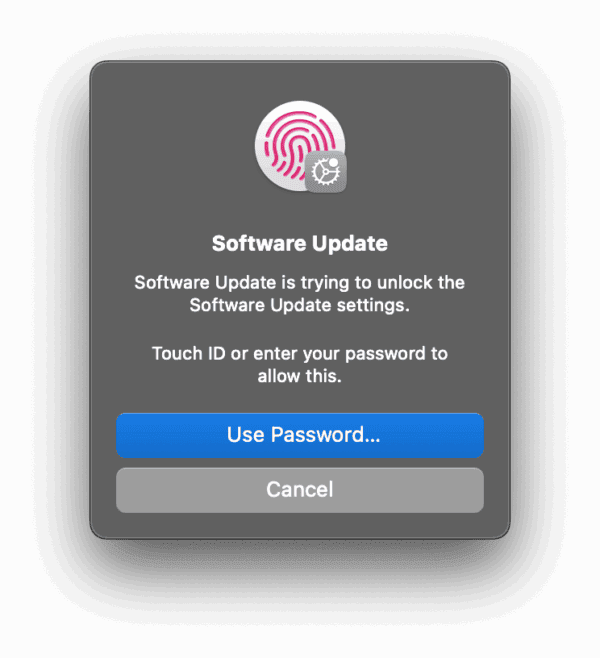
- You’ll be prompted to authenticate your Touch ID or enter the Mac’s password to confirm the change.
- Once authenticated, you’ll see that the “Download new updates when available” and “Install macOS Updates” options are turned off on your Mac.


Turn Off macOS Updates Using Terminal
If you’re hands-on with the command line, you can also use Terminal to get rid of the automatic macOS updates. It works the same way as the System Settings method and takes just about a minute. Here are the step-by-step instructions to do it:
- Open Terminal from the Dock. Alternatively, press Command + Space to open Spotlight Search and find Terminal
- Now, enter the following command:
sudo defaults write /Library/Preferences/com.apple.SoftwareUpdate AutomaticDownload -boolean FALSE - Hit the Enter key. When prompted, enter your Mac’s password and press the Enter key again.
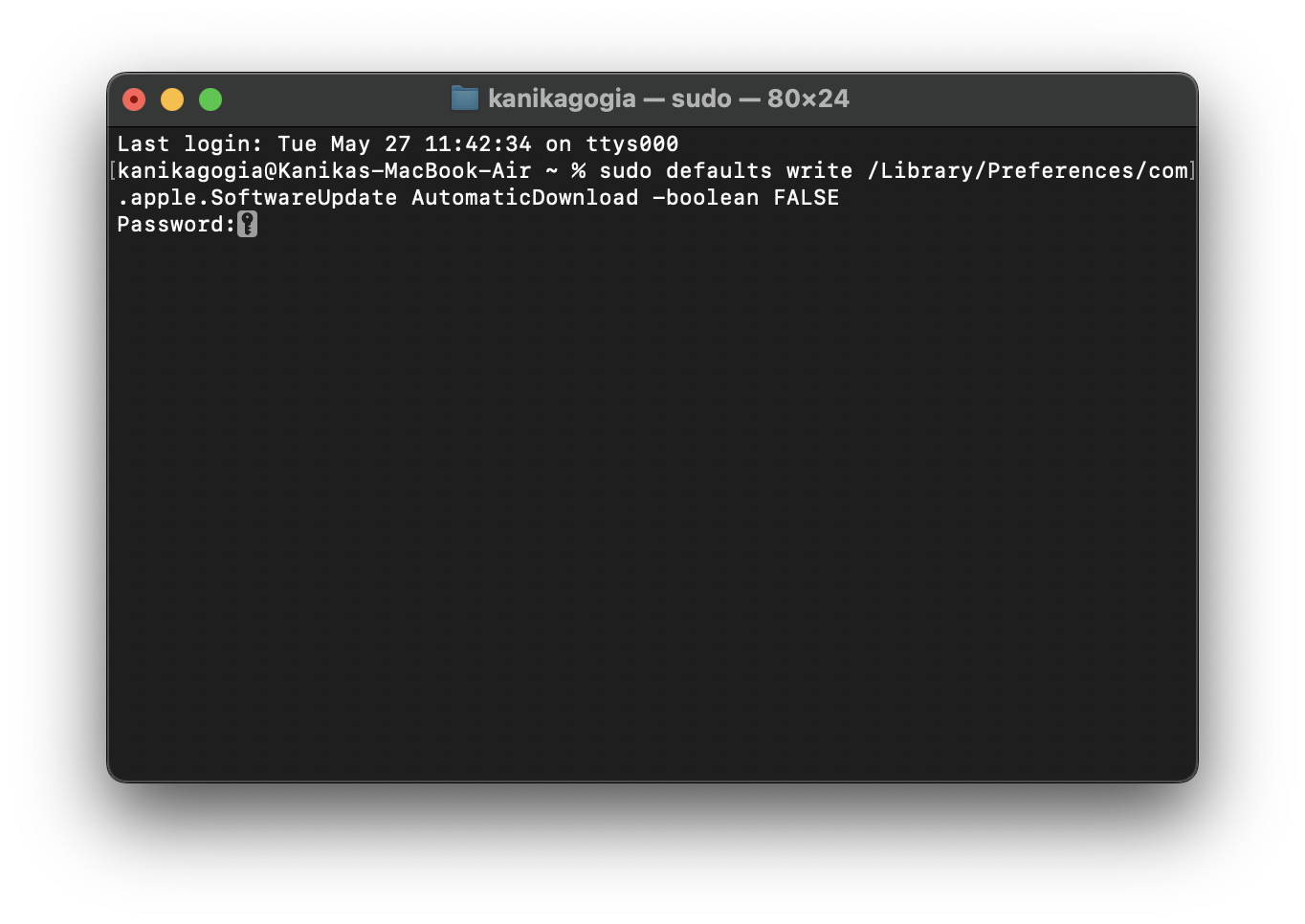
After this command, your Mac will no longer automatically download the latest macOS updates or notify you about available updates.
What Happens When You Disable Automatic Updates
To maintain the security of your Mac, Apple recommends keeping your software up to date. When you turn off automatic software updates, your Mac will stop the background updates and automatic installations. This gives you more control over when updates are installed. If the automatic updates are disabled, you won’t get updates available notification, security patches, or macOS version upgrades. So, you’ll have to check for and download updates manually.
While this gives you more control and flexibility, you may also miss out on critical security patches, bug fixes, performance enhancements, or new features. As a result, it requires more manual oversight to make sure your Mac is up-to-date with the important security fixes and improvements.


This doesn’t stop it launching a “Updates available: Install now. remind / me later” dialog every few days.
How do you turn off the notifications that will pop up ANYWAY, even after following every piece of advice here, that there is a new update available if you’re not interested in having to re-learn how to use your computer because Apple added some more silly “emojis” you will never use, and other features you have no interest in, and moved where everything is so you can’t find anything, etc… which happens even DESPITE having Do Not Disturb turned ON from 12:01 AM to 11:59 PM… (seems to happen when I wake the computer from sleep…) the defaults –ignore trick doesn’t work because Apple seems to have REMOVED the ignore option, (because OF COURSE they did,) and I hate being nagged. Please someone sue Apple and force them to put that back?
I figued it out.
Stop the notification daemon:
bashlaunchctl unload -w /System/Library/LaunchAgents/com.apple.notificationcenterui.plist
Disable the Software Update notification agent:
bashsudo softwareupdate –schedule off
If you want to disable just the badge notifications on System Preferences:
bashdefaults write com.apple.systempreferences AttentionPrefBundleIDs 0
To completely prevent Software Update checks from running automatically:
bashsudo defaults write /Library/Preferences/com.apple.SoftwareUpdate AutomaticCheckEnabled -bool false
sudo defaults write /Library/Preferences/com.apple.SoftwareUpdate AutomaticDownload -bool false
sudo defaults write /Library/Preferences/com.apple.SoftwareUpdate CriticalUpdateInstall -bool false
After running these commands, restart your Mac for the changes to take full effect.
Important notes:
Disabling software updates means you won’t receive important security patches, which could leave your system vulnerable
System Integrity Protection (SIP) on newer macOS versions may prevent some of these changes from persisting
You can always manually check for updates by going to System Preferences > Software Update when you choose to
Some commands require administrator privileges (hence the sudo)
If you later want to re-enable update notifications, you can reverse these commands by changing off to on or false to true in the respective commands.