

Call Screening in iOS 26 lets your iPhone handle unknown callers for you. It asks them for their name and why they’re calling before your phone ever rings, then shows you the response so you can decide whether to pick up. There’s also a new Unknown Callers area to keep these calls out of your main history.
If you’re still wondering whether you should upgrade to iOS 26, this feature alone might make it worth it. Let’s set it up and make it work the way you want.
Table of contents
What Call Screening actually does
When an unknown number calls, iPhone answers silently in the background, asks for the caller’s name and reason, transcribes it, and only then rings you with that info on screen. You can answer, send a text, or ignore.

If you prefer, you can skip the ask-and-transcribe step and simply silence unknown callers straight to voicemail. This is handy if you’re already dealing with other iOS 26 bugs and fixes and just want fewer interruptions.
Turn it on (and choose your style)
- Open Settings → Apps → Phone.
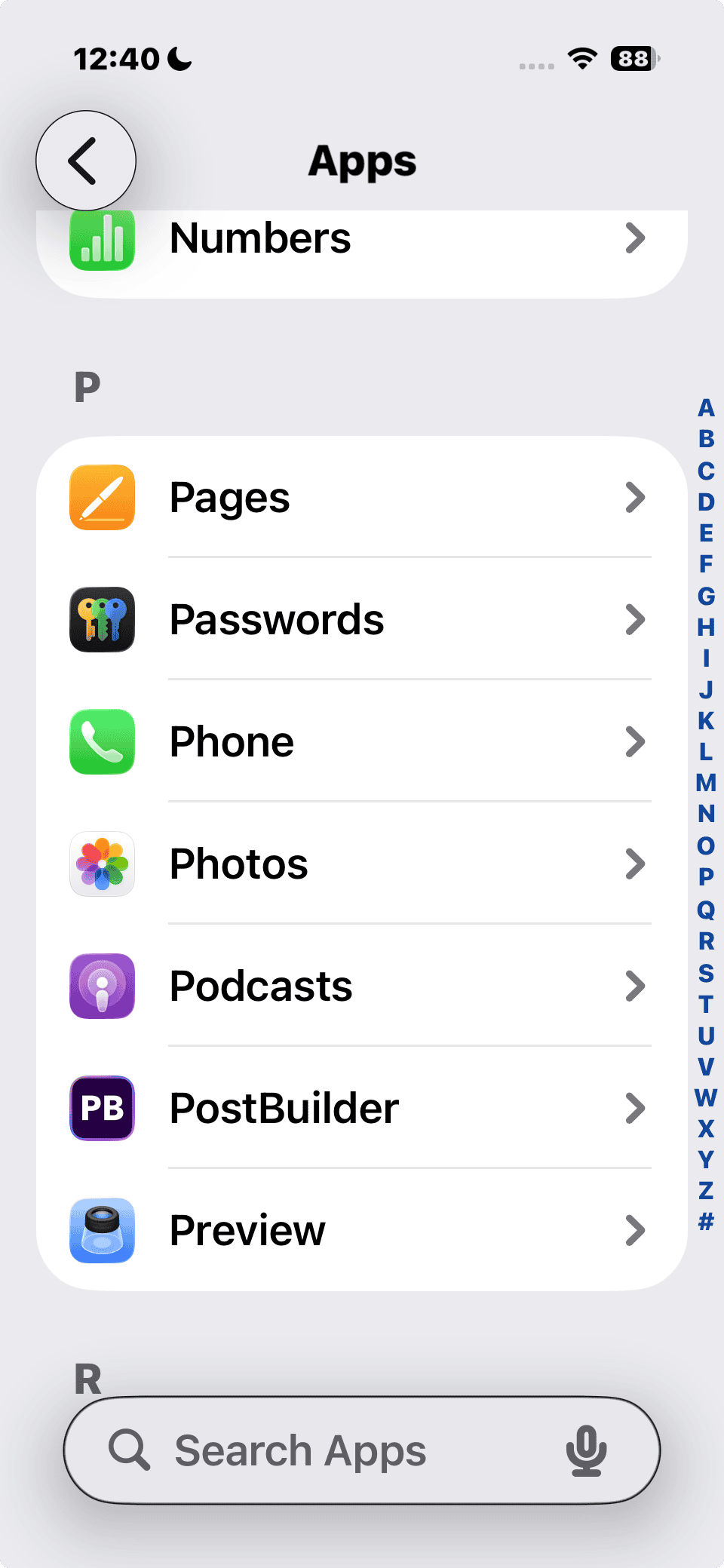
- Tap Screen Unknown Callers.
- Pick one:
- Never: off; unknown numbers ring like normal.
- Ask Reason for Calling: iPhone screens first, then rings you with the caller’s answer.
- Silence: unknown numbers are silenced and sent to voicemail, and still appear in your call list.

Tip: Siri speaks in your iPhone’s default language during screening. If you’re struggling with setup because the update isn’t showing, check our guide: iOS 26 update not showing up? Here’s how to fix it.
Keep junk out of your main call list
Call Screening works alongside two filters:
- Unknown Callers filter: moves missed calls and voicemails from unknown numbers into a dedicated Unknown Callers list.
- Spam filter: silences calls flagged by your carrier as spam or fraud and drops them into a Spam list.
Turn these on in Settings → Apps → Phone.

To view them later: Phone app → Calls (Unified layout) or Recents (Classic) → Filter → choose Unknown Callers or Spam.
Mark numbers as Known (so they ring you next time)
If a real person gets screened but you want them to reach you in the future:
Phone → Filter → Unknown Callers → Mark as Known next to the call.
Marking as Known lets that number call or text you across Phone, FaceTime, and Messages. If you ever change your mind: Contacts → Other Known → pick the number → Mark as Unknown.
This is similar to the way iOS 26 introduces new personalization tools like customizing app icons — once you set it up, you stay in control.
Pick the right option for you
- Ask Reason for Calling: best balance. You see who it is and why before being interrupted.
- Silence: for absolute peace. You’ll review later in Unknown Callers/voicemail.
- Never: if you rely on many legitimate first-time calls and don’t want any screening.
If you’re already annoyed by Dark Mode complaints in iOS 26, at least you can make your call experience feel smarter.
Availability: Does it work where you live?
Call Screening is available in a limited set of languages and regions. Good news if you’re in Germany: German (Germany) is supported. Other supported options include:
- English: United States, United Kingdom, Canada, Australia, Singapore, South Africa
- French: France, Canada
- Spanish: United States, Spain, Mexico, Puerto Rico
- Portuguese: Brazil
- German: Germany
- Japanese: Japan
- Korean: South Korea
- Mandarin Chinese: China mainland, Macao, Taiwan
- Cantonese: China mainland, Hong Kong, Macao
You can check Apple’s full feature availability list to confirm your locale.
If you don’t see the option
- Update to iOS 26. If you’re stuck, try iOS 26 update not showing up or iOS 26 stuck on Update Requested.
- Make sure your language and region are on Apple’s supported list.
- Check Settings → Phone again under Screen Unknown Callers and Call Filtering.
That’s about it! To sum it up, turn on Ask Reason for Calling if you want control without noise. Add the Unknown Callers filter to keep your call list clean. Mark real numbers as Known so they ring you next time. You’ll get fewer interruptions and still catch important calls.




Thank you, it worked flawlessly for me!!!
iPhone 17 pro max
Thank you!! Works for me!!!!
I haven’t had a spam caller get through since I enabled this feature. I was getting 8-12 spam calls a day.
I love it!!
Works great! I love this feature!
Enabled the feature, easy-peasy, with the “Ask Reason for Calling” option but just got an unknown call ring right through. As I understand it, the call shouldn’t have rung to me without first receiving feedback from the caller. Very disappointing, as my wife’s Android call screening works flawlessly. I was really excited to see Apple finally do this.
The feature does work. The caller has to be someone that has NEVER been in your Contact List. If the Caller was in your Contact List at some point in time and you deleted that Contact it is STILL There. That call will come thru with No Screening. Only Callers that have never been in your contact list are Unknown! Makes No Sense, but that the way it was designed to work.
Huge negative for me. I have a dual sim, phone with my personal number and my business number. I would use this feature if it let me set it differently for each number. I get a lot of unknown user calls on my business line from prospective customers. I have to answer them. I would like to block unknown callers on my personal line. No way to do that so the feature is useless for me.
Not working for me. Iphone 15 ios 26, Ask Reason for Calling
Unknown caller hears nothing, no ring tone, no why are you calling…. nothing.