

So you’ve recently switched to a new computer and want to back up your music? Depending on the type of your operative system, there are lots of ways to You can easily move your iTunes library to a new computer using an external drive or USB.
It’s easy to do it from phone to phone, so noving your music collection from PC to PC shouldn’t be hard. You’ll transfer every song, playlist, and rating without losing a beat. Here’s how to move iTunes library to new computer with clear step-by-step procedures.
Table of contents
Preparation
Before you begin transferring iTunes library to another computer, here’s a few essential things to consider:
- You should have an external hard drive or large USB flash drive.
- The latest version of iTunes on Windows or the Music app on macOS.
- Your Apple ID and password for authorizing the new machine.
- A recent backup of your current computer. If you’re on Mac, see our guide on how to back up your Mac.
- Enough time because if you have a big library it may take hours.
How to Move Your iTunes Library to a New Computer on Mac
Before you move your iTunes library to a new computer, make sure everything is stored in one location. On macOS Catalina or later, iTunes has been replaced by the Music app, but your library files remain compatible.
Follow these steps to move your iTunes (or Music) library from one Mac to another.
- Open the Music app (or iTunes if you’re using macOS Mojave or older).
- In the top menu, go to Music > Settings (or iTunes > Preferences).
- Click the Files tab.
- Select Organize Library, then check Consolidate files.

- Click OK. This step ensures that all your songs, playlists, and media files are stored in the same folder. By default, your iTunes library is stored in:/Users/[YourUsername]/Music/iTunes/iTunes Media

- Connect an external hard drive or USB drive to your Mac.
- Copy your music folder where you consolidate the files and paste it to your external drive or USB. This may take several minutes or hours, depending on your library size.
- Connect the same external drive to your new Mac, and locate the copied iTunes or Music folder on your external drive.
- Drag and drop the folder into the Music folder on your new Mac.
- Hold down the Option key and open the Music app (or iTunes).
- Click Choose Library when prompted.
- Navigate to your transferred iTunes Library.itl or Music Library.musiclibrary file inside the folder you copied.
- Select the file and click Open. Your playlists, songs, and settings should now appear exactly as they did on your old Mac.

How to Move Your iTunes Library to a New Computer on Windows PC
If you’re using Windows, the process is almost identical. You just need to know where your iTunes files are stored and how to copy them correctly.
- Open iTunes on your old PC.
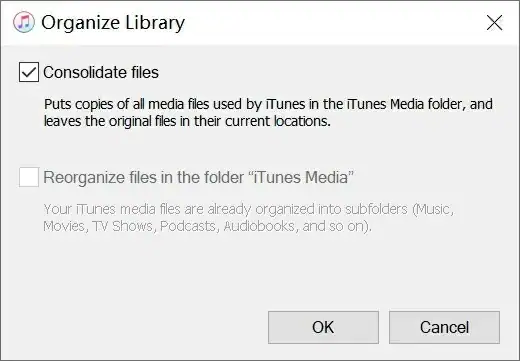
- From the top menu, go to File > Library > Organize Library.
- Check the box for Consolidate files, then click OK. By default, your iTunes library is located in C:\Users[YourUsername]\Music\iTunes
- Plug in your external hard drive or USB drive.
- Open File Explorer.
- Go to C:\Users\[YourUsername]\Music\.
- Right-click the iTunes folder and select Copy.
- Navigate to your external drive, right-click, and select Paste.
- Wait for the files to finish transferring before disconnecting the drive.
- Connect the same external drive to your new computer.
- Open File Explorer.
- Navigate to your external drive and find the copied iTunes folder.
- Drag and drop it into the Music folder on your new computer: C:\Users\[YourUsername]\Music\
- Hold down the Shift key and open iTunes.
- When the pop-up appears, click Choose Library.
- Navigate to the iTunes Library.itl file inside your copied folder.
- Click Open to load your library.
All your playlists, albums, and play counts will appear as before.
Tip: If your music files don’t show up immediately, go to Edit > Preferences > Advanced and check that the iTunes Media folder location matches your new directory.
Summary
- Consolidate your iTunes or Music library to keep all files in one folder.
- Copy the entire iTunes or Music folder to an external drive.
- Paste the folder into the Music directory on your new computer.
- Open iTunes (or Music) while holding Shift/Option to choose the new library.
- Authorize your new computer to access your purchases.
Conclusion
Transferring your entire library sure sounds like it’s a hassle, but being prepared beforehand, and with just a little tweaking, you can safely and quickly transfer your files to your desired location. You can also check out our guide on how to transfer your Spotify library as well.
Whether it’s Mac on Windows, vice versa, or otherwise, moving your iTunes library to a new computer ensures that your music, playlists, and preferences remain unchanged.
FAQ
Yes, but it’s slower. You can use network file sharing or cloud services, but an external drive is faster and more reliable.
No. If you use the “Consolidate Library” option and copy the full iTunes folder, your playlists and metadata will transfer intact.
Not directly. You can manually import songs from one library into another using File > Add Folder to Library, but playlists won’t merge automatically.
Yes. After moving your iTunes library, open iTunes and go to Account > Authorizations > Authorize This Computer to access purchased content.
Yes. On macOS Catalina or later, iTunes has been replaced by the Music app. However, the steps above work the same way since the folder structure is similar.


