

If your photos keep showing up on every Apple device you own, and you’d rather keep each camera roll separate, you’re not alone. This happens because iCloud Photos syncs your entire library across iPhone, iPad, Mac, PC, and even Apple TV. The good news is you’re in complete control. You can turn off syncing on just one device or shut it down everywhere. Let’s walk through both options so you can decide what works best for you.
Table of contents
Before You Turn Anything Off: Know What Happens

Turning off iCloud Photos doesn’t wipe your photos instantly, but it does change how they behave.
Here’s what to expect:
- Your photos stop syncing to and from that device.
- Anything already in iCloud stays in iCloud unless you choose to delete it.
- Depending on your settings, the device may ask whether to download originals or remove local copies.
The key is simple: if you want to keep your photos on a device, download originals before turning syncing off.
Option 1: Stop Syncing Photos on One Device Only
This is the move when you want your iPhone and Mac separate, or you don’t want your iPad pulling in thousands of old pictures.
On iPhone, iPad, or Apple Vision Pro
- Open Settings
- Tap your name
- Tap iCloud
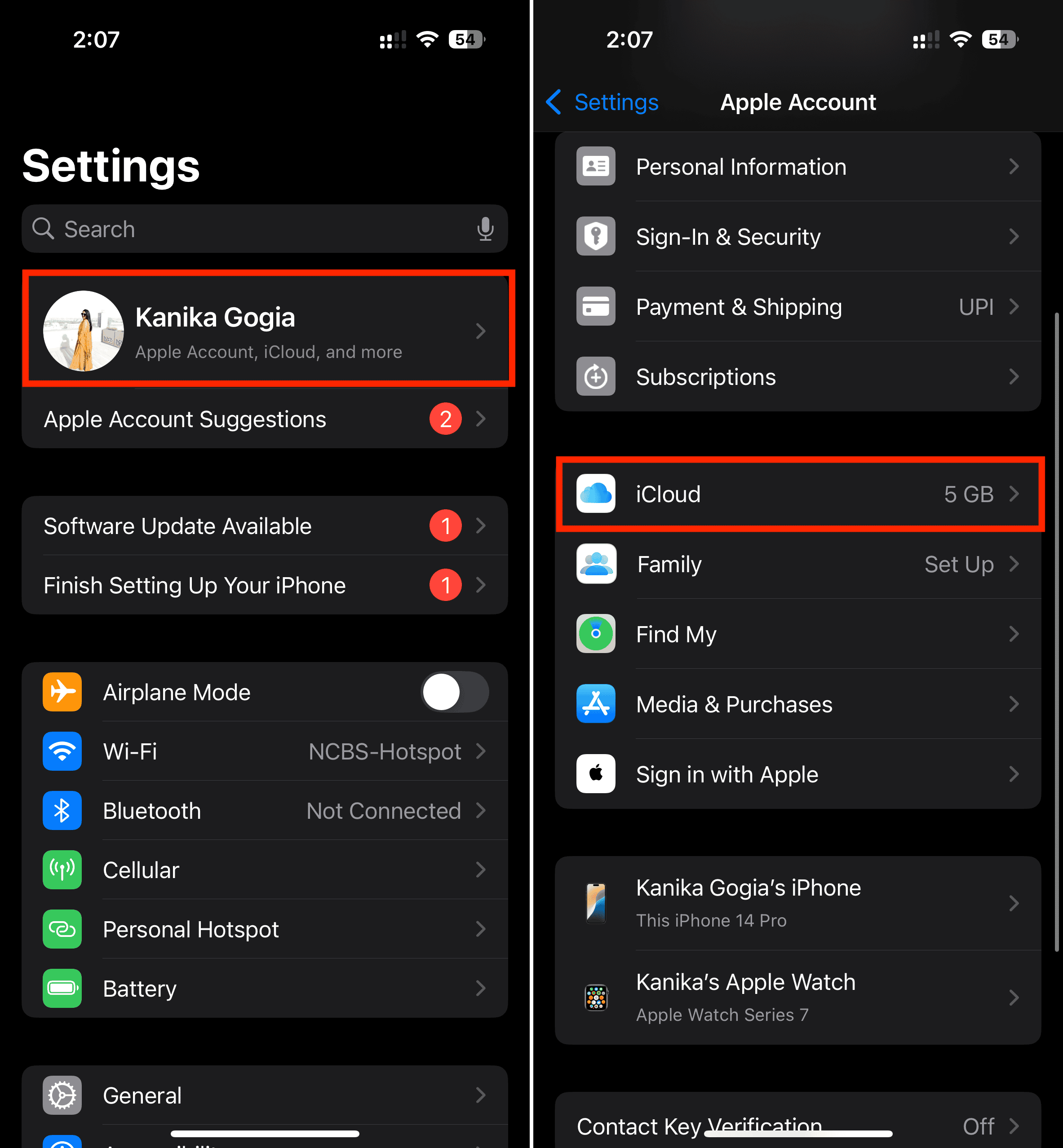
- Tap Photos
- Turn off Sync this [Device]
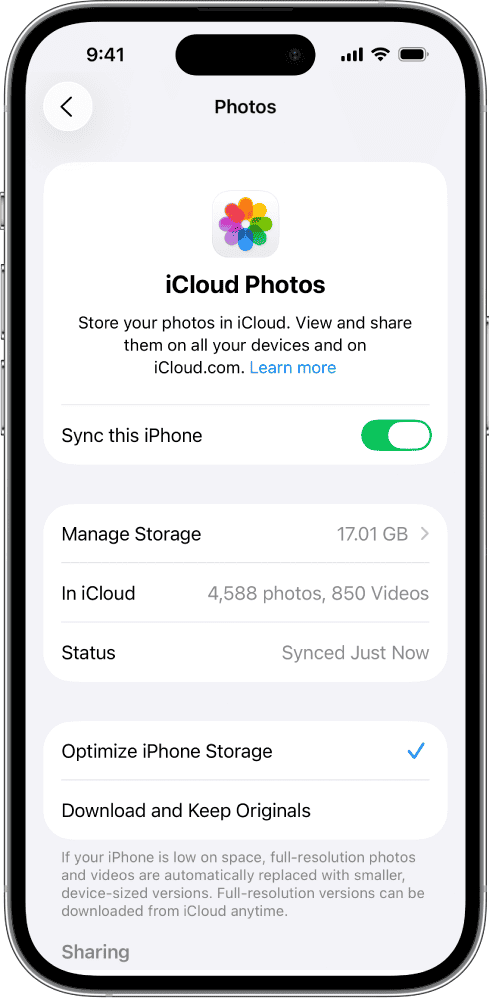


At that moment, new photos stay on that device only.
If you had Optimize Storage enabled, you’ll be asked whether to remove photos from the device or download originals first.
On Mac
- Open System Settings
- Click your name
- Select iCloud
- Click Photos under Saved to iCloud
- Turn off Sync this Mac
Or go through the Photos app:
Photos → Settings → iCloud → uncheck iCloud Photos
If Optimize Mac Storage was on, you’ll be prompted to delete local versions or download originals.
On Windows (iCloud for Windows)
- Open iCloud for Windows
- Sign in
- Click Options next to Photos
- Uncheck iCloud Photos
- Click Done, then Apply
You’ll be asked whether to delete synced photos from the PC.
On Apple TV
- Open Settings
- Go to Accounts → iCloud
- Turn off iCloud Photos
This only affects viewing, not your stored library.
Option 2: Stop Syncing Photos Across All Devices
If you’re done with iCloud Photos altogether and want it disabled everywhere, here’s the path.
On iPhone, iPad, or Apple Vision Pro
- Open Settings
- Tap your name
- Tap iCloud → Storage
- Tap iCloud Photos
- Tap Turn Off and Delete Photos
Apple gives you 30 days to undo this before everything in iCloud Photos is permanently removed.
On Mac
- Open System Settings
- Click Apple Account
- Click iCloud → Manage
- Select iCloud Photos
- Choose Turn Off and Delete from iCloud
Same 30-day grace period applies.
Should You Disable iCloud Photos?
Turning off syncing makes sense if:
- You want your devices to stay separate
- You’re low on iCloud storage
- You prefer manual backups
- You don’t want your personal photos appearing on shared computers
On the other hand, if you shoot a lot of photos and want them protected automatically, keeping iCloud Photos on is still the easiest backup solution Apple offers.
Pro Tip: Make Sure Your Photos Stay Safe
If you’re turning off syncing to save space, remember that iCloud Photos is not the only cloud option. You can migrate your photos to another cloud, back them up manually, or store them on an external drive. If storage is the real issue, moving your library somewhere else gives you flexibility without losing your photos.
Bottom Line
Stopping photo syncing across Apple devices is straightforward once you know where the switches live. Decide whether you want to disable sync on one device or everywhere, download originals if needed, and then flip the setting. From that moment on, each device keeps its own camera roll—and your photos stay exactly where you want them.


